Setup for building windows application
Building instructions to build electron app to appx format for distribution in the windows store
Prerequisites
- Windows 11
- Windows Powershell (preinstalled)
- Admin privileges. If you don't have admin privileges, open a ticket to IT
- Node installed in your system. Recommended to use nvm-windows. Can be installed with
wingetwithwinget install CoreyButler.NVMforWindows - Enable developer mode
- Open the settings app. Go to System > For developers. Enable toggle for "Developer Mode"
Windows APPX bundles for the windows store can only be built in a windows machine
Setup packaging dependencies
Windows
- Download Visual Studio installer 2026 or latest
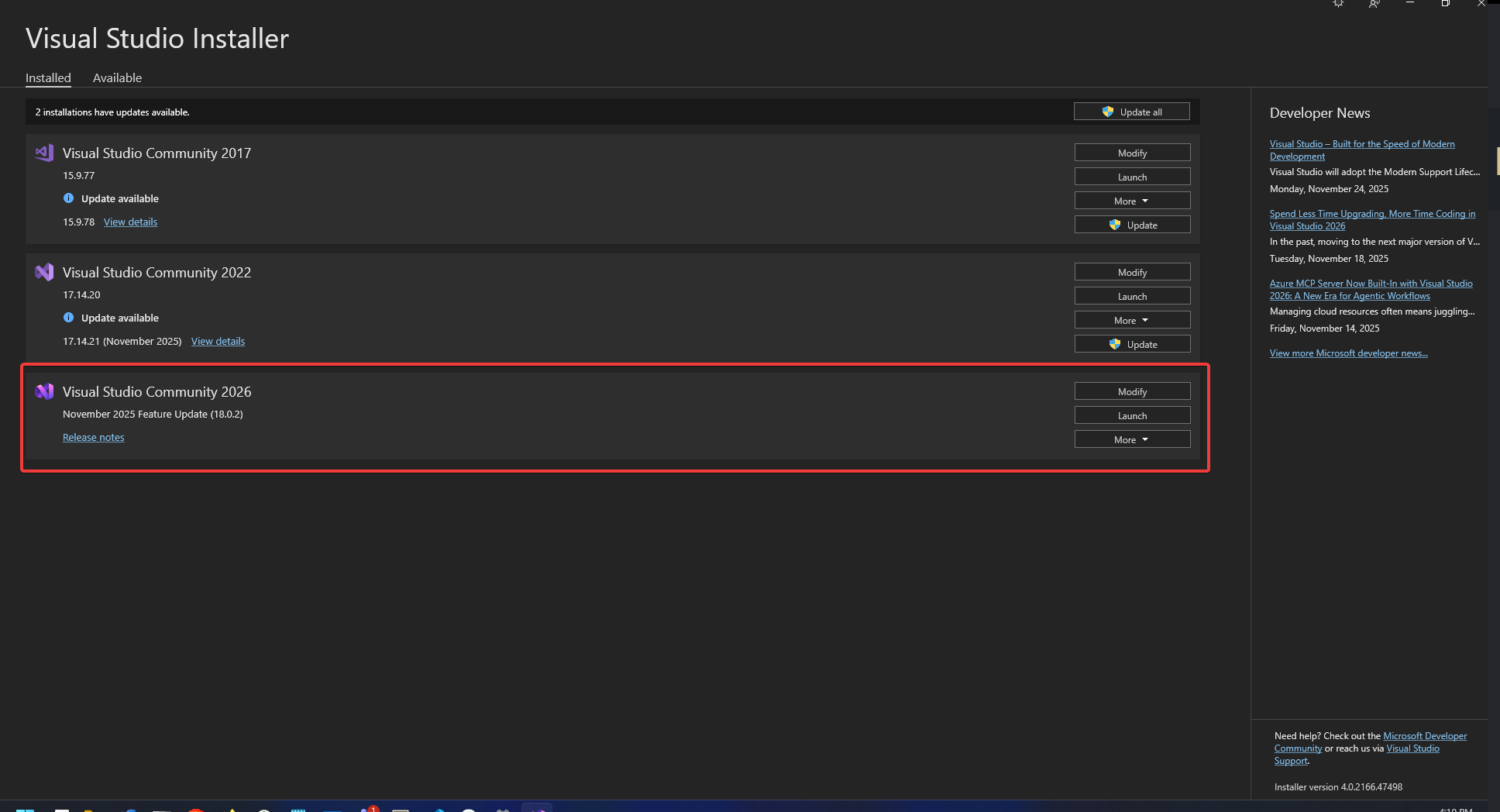
- Click install/modify on Visual Studio 2026
- Under workloads check "Desktop development with C++"
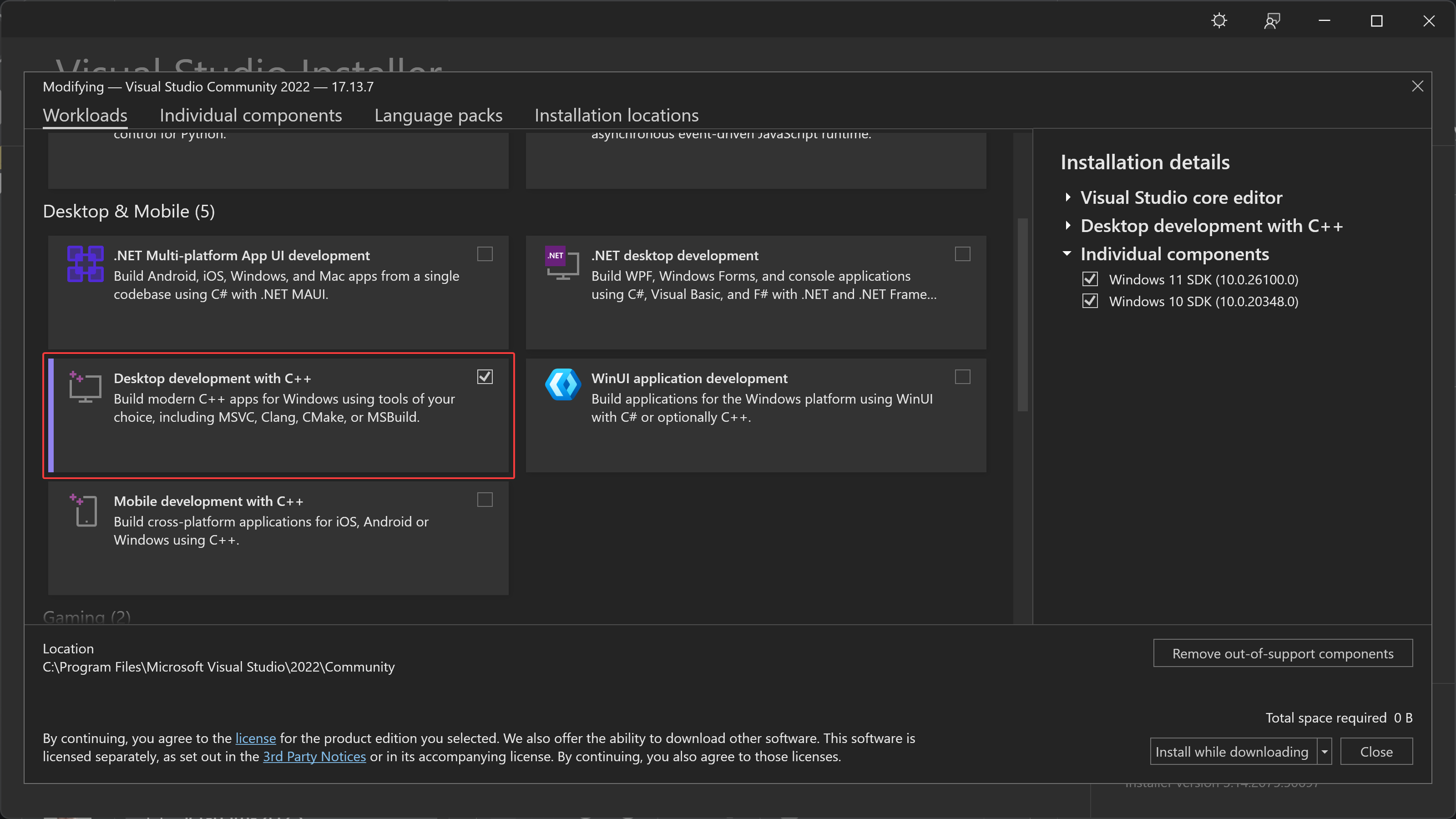
- Go to individual components and ensure "Windows SDK (10.0.22621.0)" is checked
- Click on the "install while downloading" button
- When it is done, you will need to restart your system for some changes to take effect
For latest information on the build process you can check chromium build instruction for Visual Studio
Analytics Dependencies
Make sure you are connected to HP with GlobalProtect (for example http://ams-houston.ext.hp.com/).
Add these two sources to Nuget Package Manager in Visual Studio:
- "nuget-hosted": "https://nexus-int.corp.hpicloud.net/repository/nuget-hosted/"
- "nuget-public": "https://nexus-int.corp.hpicloud.net/repository/nuget-public/"
You will need to install
- HP.Jarvis.DataCollection, version 3.13.1.710 and
- HP.Jarvis.ValueStore, version 2.3.3.238-alpha as specified in native/application/native.csproj.
Setup development certificate
We need to setup a windows store certificate for development in order to use electron-forge make command.
- Install
electron-windows-storepackage if it is not already available in package.json
pnpm install -D electron-windows-store
The following commands need to be run using windows powershell (powershell.exe).
Certificate creation will fail with the newer powershell core (pwsh.exe).
- Enable execution policy to run powershell scripts
Set-ExecutionPolicy -ExecutionPolicy RemoteSigned
- Run the command from an elevated powershell instance
You can open an administrator terminal with right click on the windows start button, then select "Terminal (Admin)" or you can enable sudo for windows following the instructions
pnpx electron-windows-store
Creating a development certificate
You will be prompted the a few questions the first time you run it
Did you download and install the Desktop App Converter? It is not required to run this tool. (y/n)
Enter n
You need to install a development certificate in order to run your app. Would you like us to create one? (Y/n)
Enter y
Please enter your publisher identity: (CN=developmentca)
Press enter to accept default
Please enter the location of your Windows Kit's bin folder: (C:\Program Files (x86)\Windows Kits\10\bin\x64)
Press enter to accept default if you use the default location when installing visual studio dependencies in step 1. If you used a custom path, please enter that path here, then press enter.
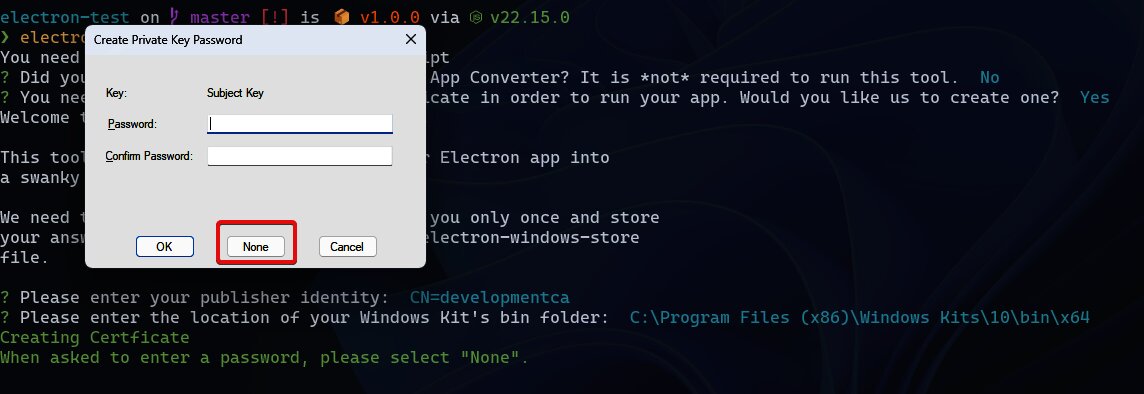
Creating Certficate When asked to enter a password, please select "None"
A window will popup asking you to enter a password. Select the button that says None
Please enter the path to your built Electron app:
You can accept the default
Please enter the path to your output directory:
You can accept the default
Please enter your app's package name (name of your exe - without '.exe'):
Enter hp-channels
Please enter your app's package version: (1.0.0.0)
You can accept the default
Verifying certificate
The process will complete. You can ensure it was successful by checking these
$HOME\.electron-windows-storefile with a content like:
Get-Content $HOME\.electron-windows-store
{
  "desktopConverter": false,
  "expandedBaseImage": false,
  "publisher": "CN=developmentca",
  "windowsKit": "C:\\Program Files (x86)\\Windows Kits\\10\\bin\\x64",
  "devCert": "C:\\Users\\eduardo\\AppData\\Roaming\\electron-windows-store\\developmentca\\developmentca.pfx"
}
C:\Users\<USER>\AppData\Roaming\electron-windows-store\developmentcadirectory with the content
Get-ChildItem $env:AppData\electron-windows-store\developmentca

        Directory: C:\Users\eduardo\AppData\Roaming\electron-windows-store\developmentca


Mode                LastWriteTime         Length Name
----                -------------         ------ ----
-a---         21-May-25  10:51 AM            809 developmentca.cer
-a---         21-May-25  10:51 AM           2606 developmentca.pfx
-a---         21-May-25  10:51 AM           1196 developmentca.pvk
If you had any issue when creating the certificate, simply delete the file and directory mentioned above and run electron-windows-store again.
In powershell you can use
$HOMEvariable to always refer to the home user directory$env:AppDataenvironment variable to always refer to theAppData/Roamingdirectory
Additional documentation
If you have issues, please check the official documentation of the tools used