Sideload APPX and MSIX
In this page it is explained the process to sideload a signed APPX or MSIX bundle application.
This is a two step process
- Import certificate
- Install application
Adding a certificate requires you to have admin privileges in the windows machine. If you do not have admin privileges, please open an IT ticket to request the permissions.
For Developers
On windows you need to setup a developer certificate. The certificate is used when packaging into an APPX or MSIX bundle. The signature is needed in order for the app to be installable in windows devices when sideloading.
If you are a developer, check how to create a certificate to sign your builds.
Add root certificate
If at any step you are asked to a password for the certificate, leave it blank
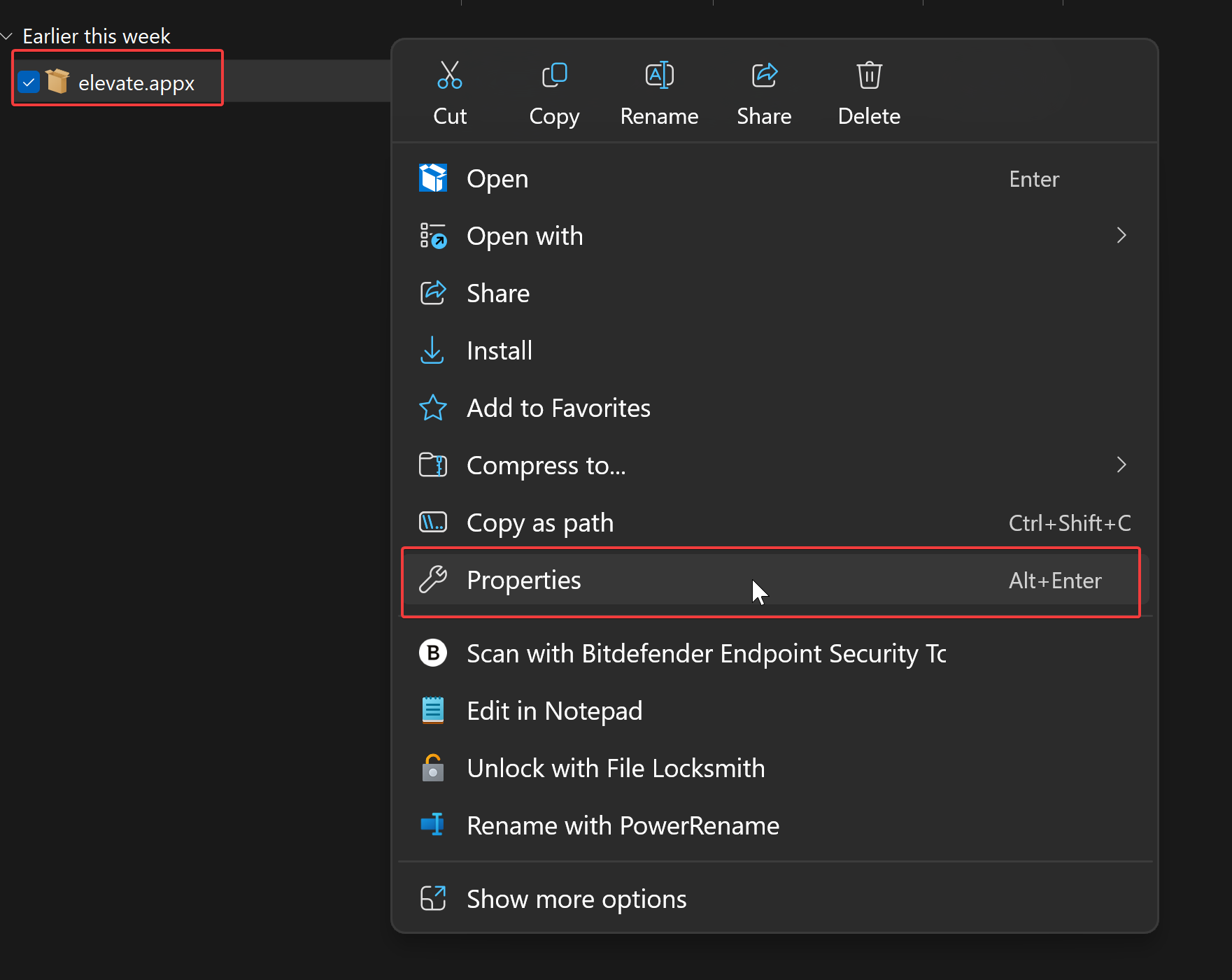
- Locate your APPX/MSIX bundle. Right click on it and select properties.
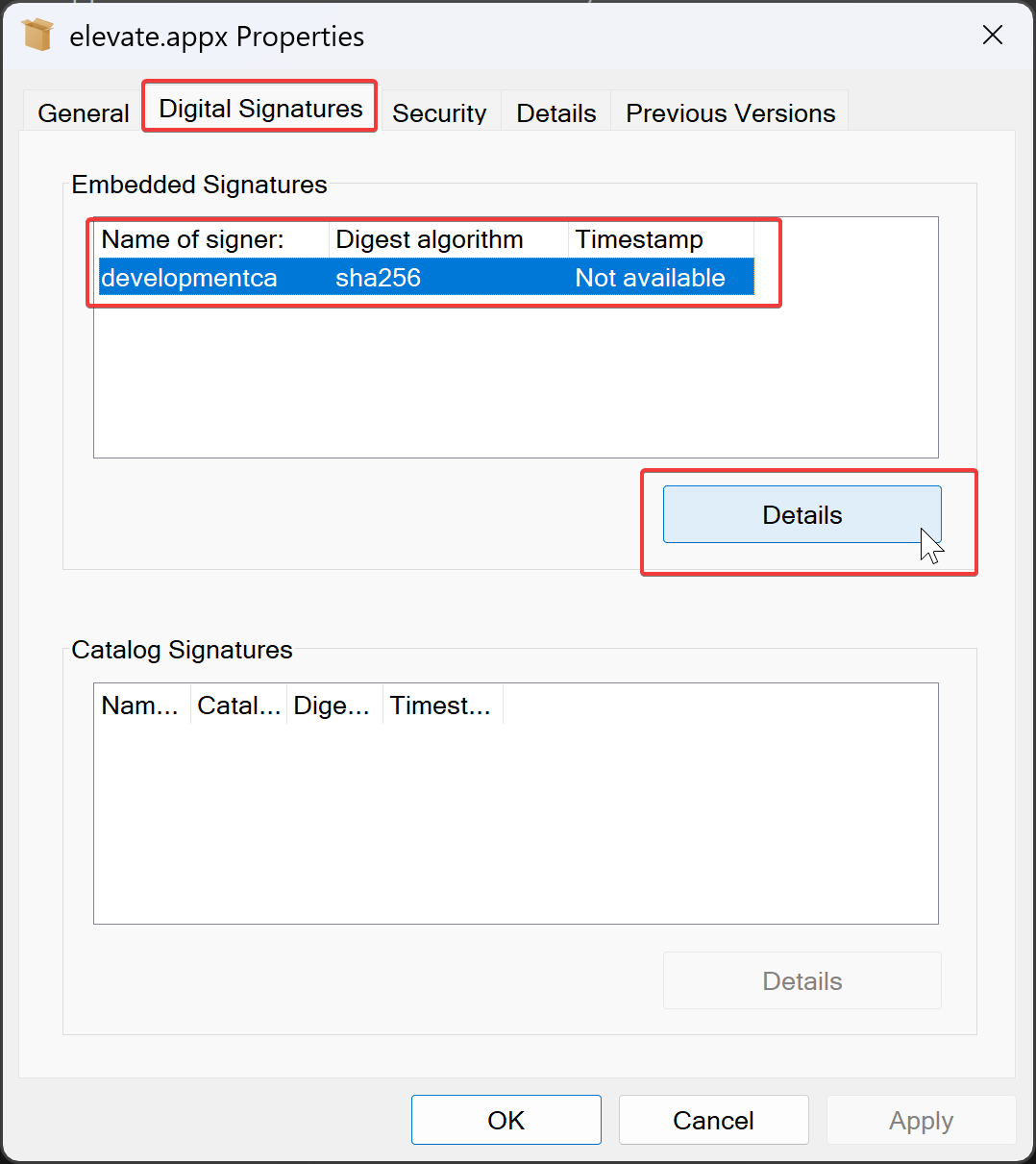
- Go to Digital Signatures tab. Select the embedded signature and click on "Details" button.
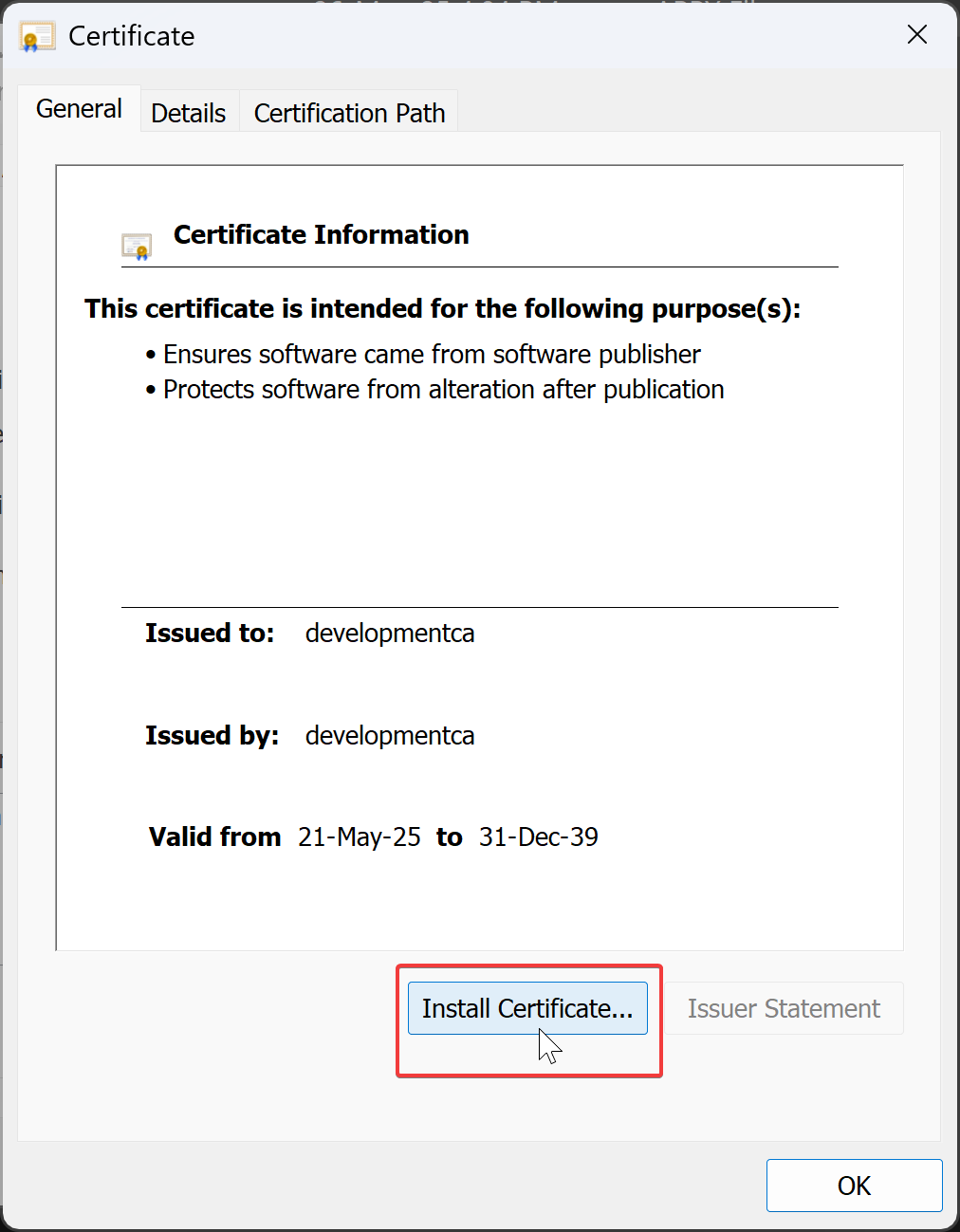
- A new popup will appear. Click on "View Certificate" button.

- A new popup will appear. Click on "Install Certificate" button.
- The "Certificate Import Wizard" will appear. Select "Local Machine" and click next.
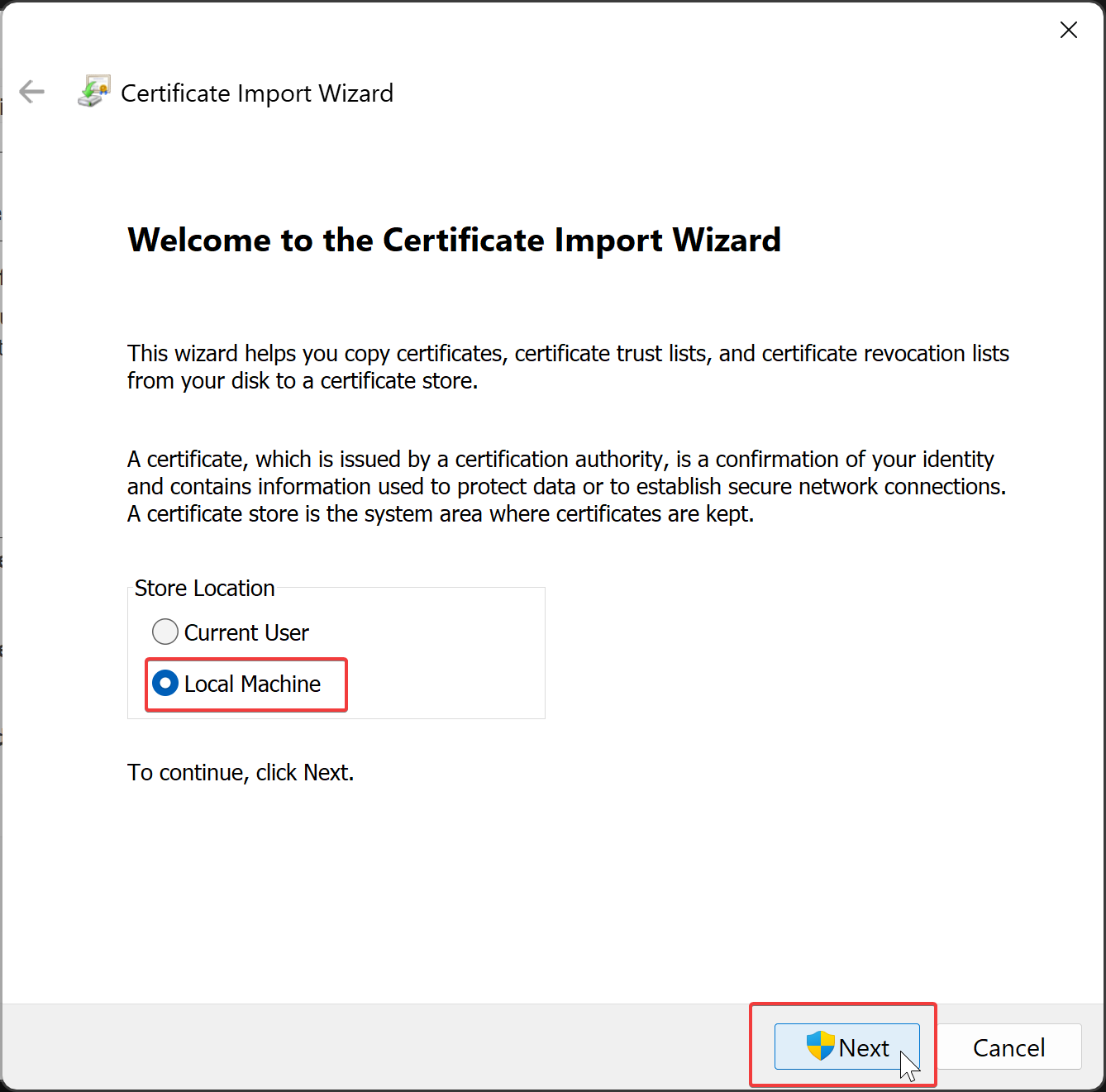
-
The UAC will prompt you to run as administrator. Select "Yes".
-
In the Wizard, select "Place all certificates in the following store". Then click on "Browse..." button.
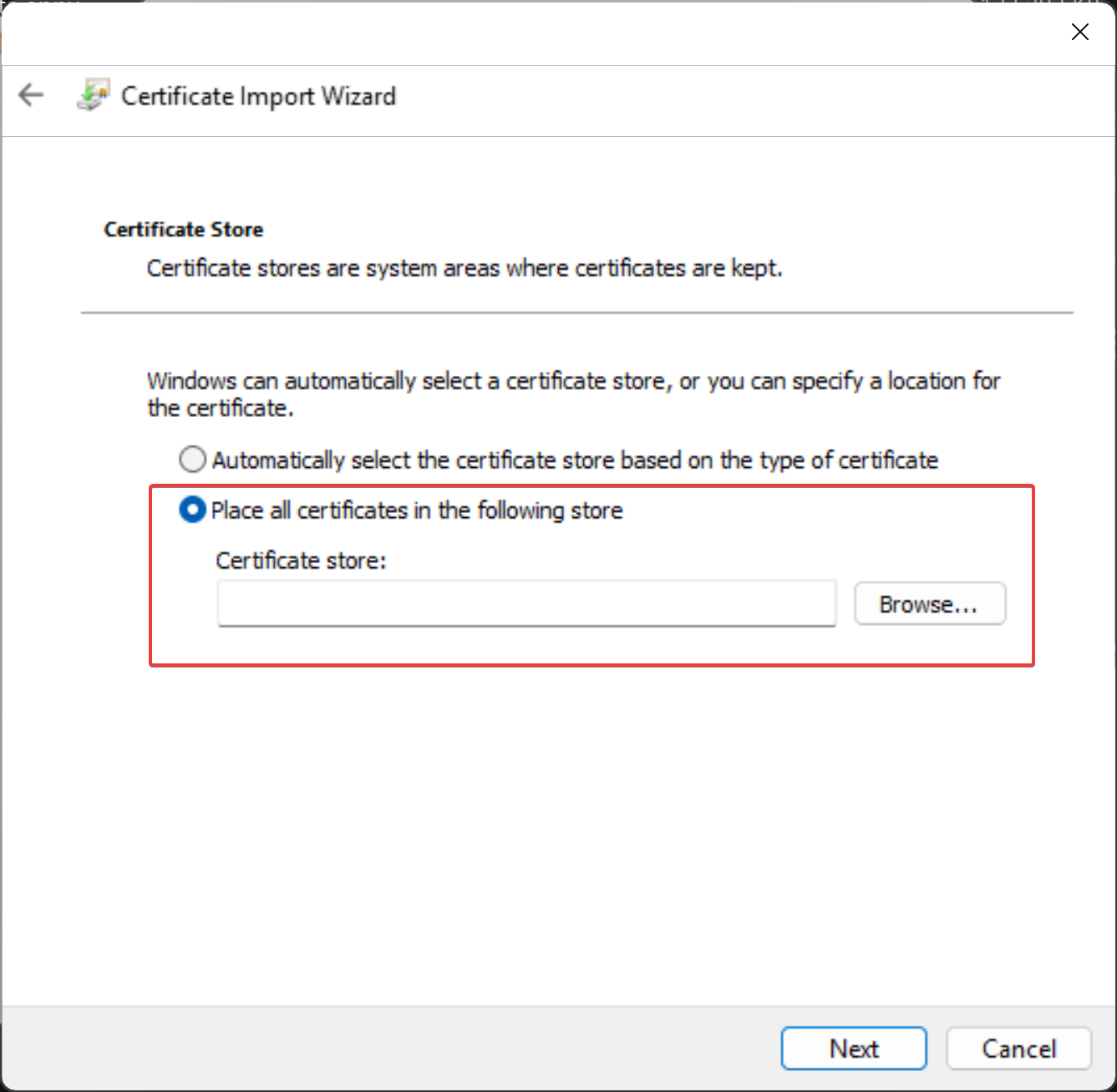
- In the popup select "Trusted Root Certification Authorities" and click "OK" button.
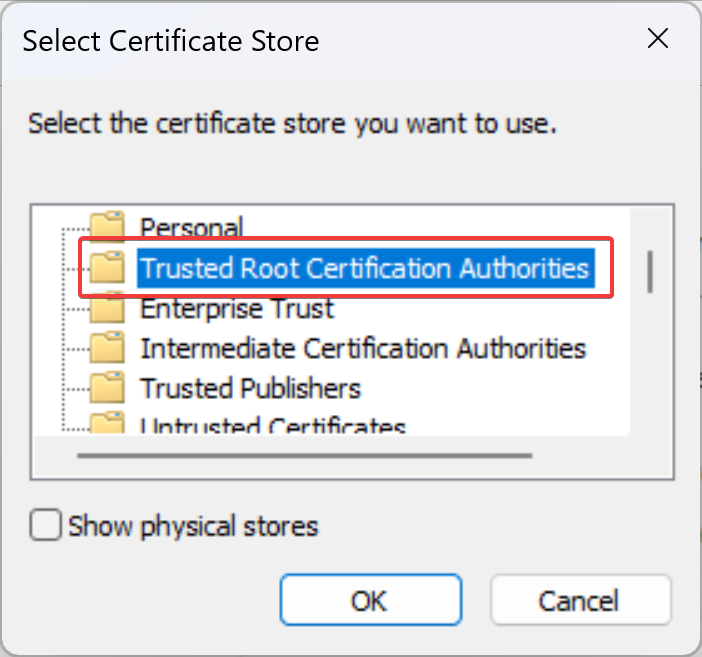
If "Trusted Root Certification Authorities" does not allow you to install the appx, try importing again selecting Trusted People.
- You will be back to the wizard. Click "Next".
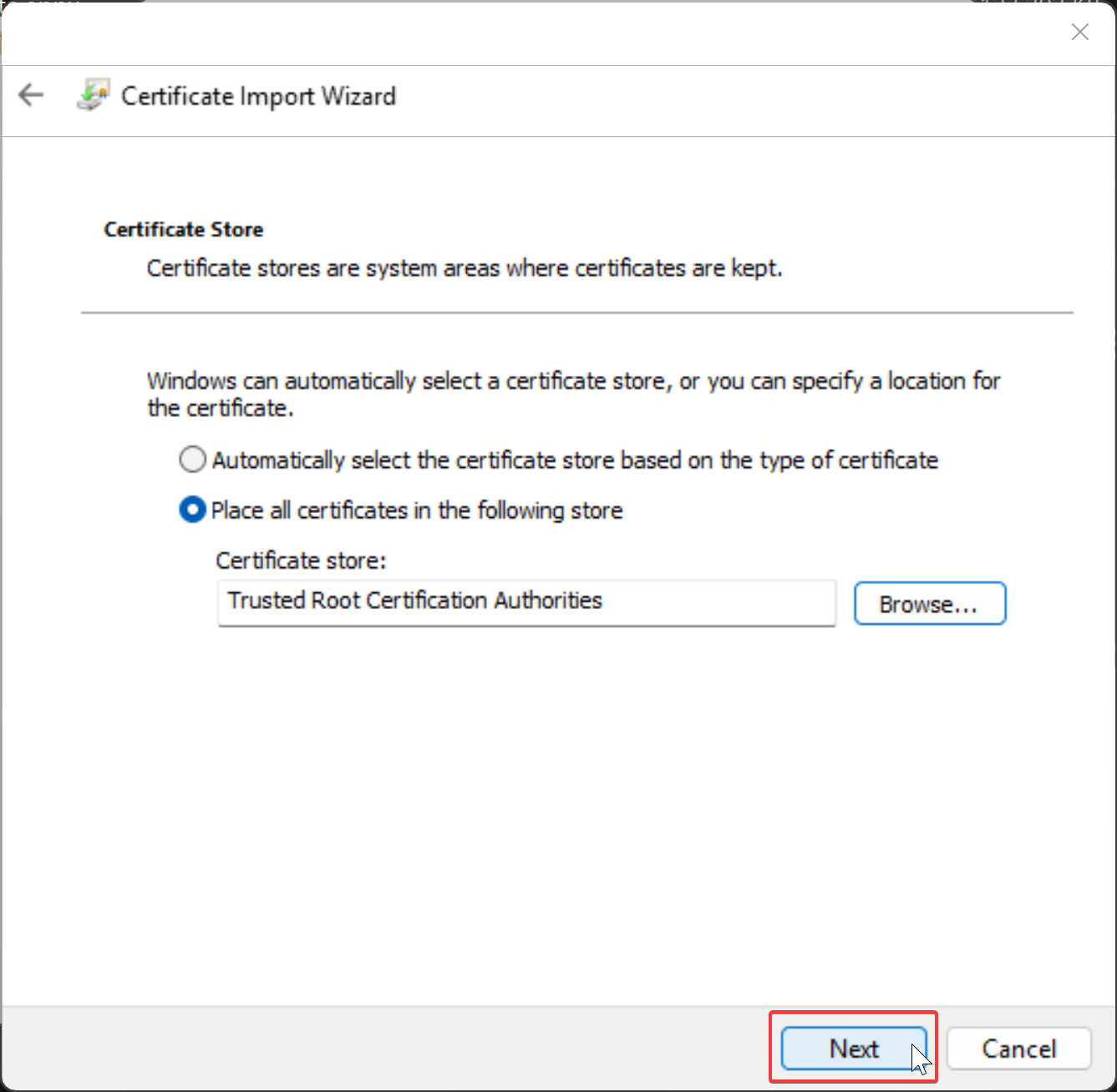
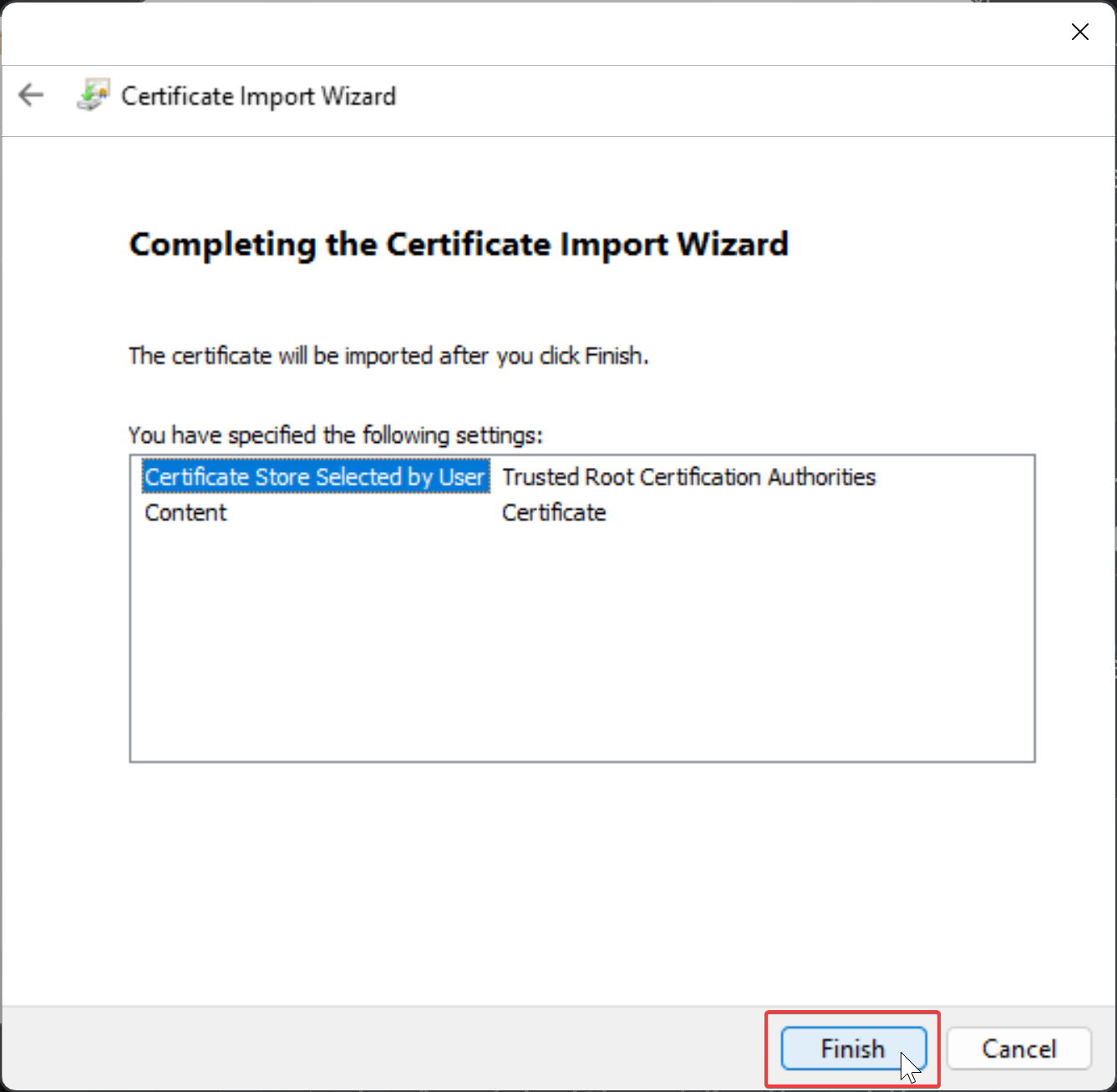
- On the "completing the certificate import wizard" screen review the information. If everything is good click on "Finish" button.
- You will be showed a popup for confirmation that the certificate has been imported successfully.

- The certificate is now imported. You can close all remaining opened windows.
You only need to import the certificate once if you install applications signed with the same certificate.
If the certificate changes, you need to import the new certificate.
Install APPX or MSIX
- Locate your APPX or MSIX bundle and double click it.

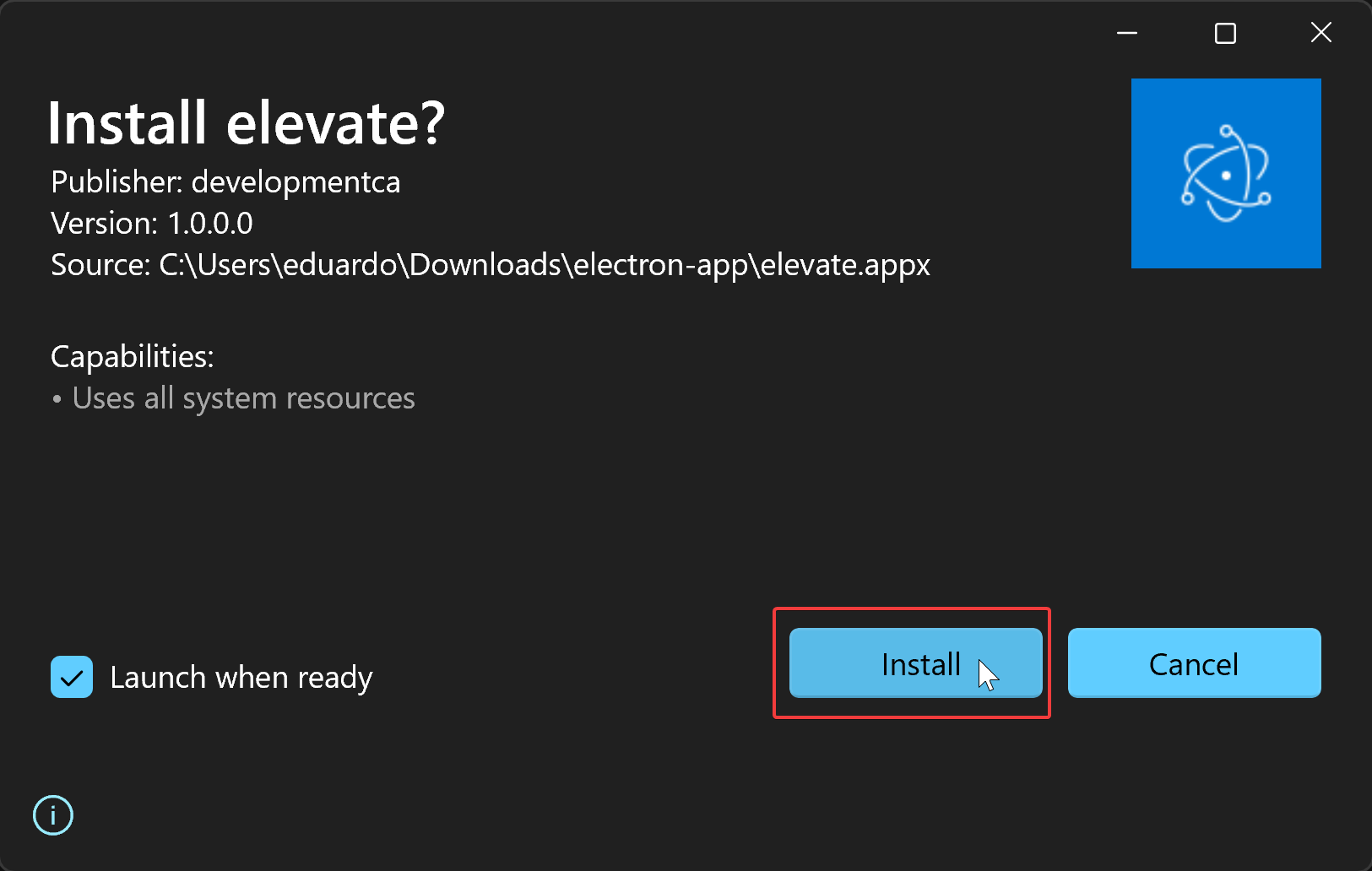
- A popup will appear prompting you to install the application. Click on "Install" button. You can optionally check the
Launch when readycheckbox.
-
Wait for the application to complete installation.
-
Once completed the popup will self dismiss. If you marked the
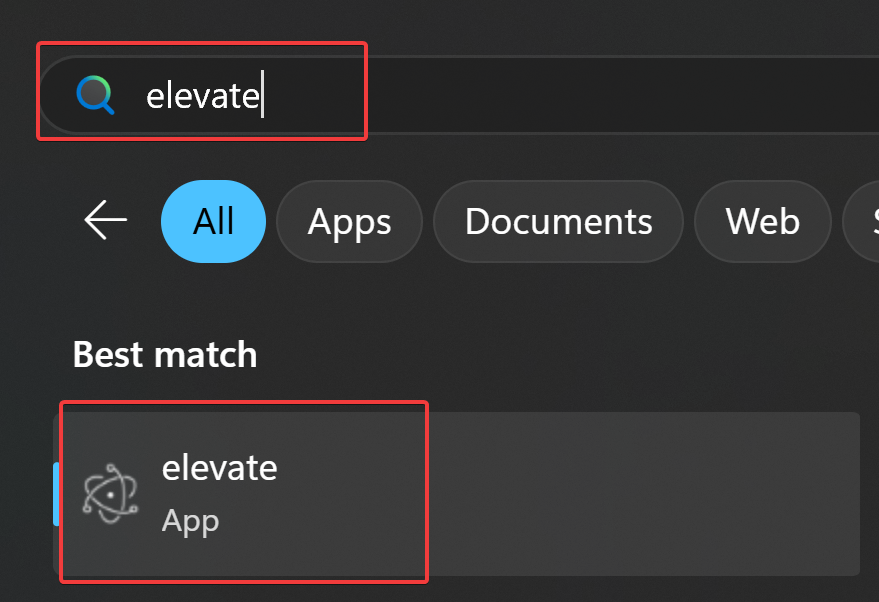
Launch when readycheckbox, the app will start automatically. If not, you can search for it in the start menu by the app's name.